tutorials
Step 3: Automatic Data Type Detection
In this step, we use the automatic data type detection of the OData V4 model to parse, validate, and format user entries. The service metadata contains type information for the properties of each entity.
The OData V4 Model utilizes this information to compute the corresponding OpenUI5 type, including constraints, and sets this type to the OpenUI5 property binding for the entity property. For example, for <Input value={Age}/> the OpenUI5 type Int64 is used, which corresponds to the OData type Edm.Int64.
Preview
Input does not match the underlying data type
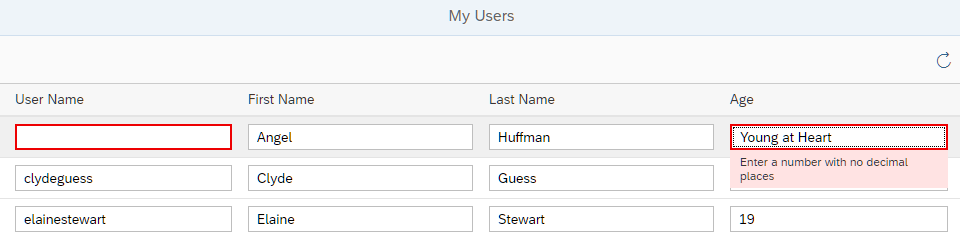
You can view this step live: 🔗 Live Preview of Step 3.
Coding
You can download the solution for this step here: 📥 Download step 3 (TS)📥 Download step 3 (JS).
webapp/manifest.json
{
  "_version": "2.8.0",
  "sap.app": {...
  },
  "sap.ui": {
    "technology": "UI5",
    "deviceTypes": {

    }
  },
  "sap.ui5": {
    "rootView": {
    ...
    },
    "dependencies": {
      ...
      }
    },
    "contentDensities": {
      ...
    },
    "handleValidation": true,

    "models": {
      ...
    }
  },
  ...
}
In the manifest.json descriptor file, we add the "handleValidation": true setting. This makes sure that any validation errors that are detected by the OpenUI5 types are shown on the UI using the message manager.
We now run the app using the index.html file and enter values that don’t match the type and constraints given in the metadata file. For example, enter the string value Young at Heart in field Age, which requires an integer input (OpenUI5 type sap.ui.model.odata.type.Int64, corresponding to OData type Edm.Int64), or remove an entry from the User Name or First Name fields, which are mandatory. Fields with incorrect entries are highlighted and an error message is displayed.
📝 If you explicitly define a type in the binding info of a control, the automatic type detection for that binding will be turned off. For example, if you change the
InputforAgein the view to<Input value="{path:'Age', type:'sap.ui.model.type.String'}/>, theStringtype will be used, not theInt64type from the service metadata.
localService/metadata.xml
<EntityType Name="Person">
  <Key>
    <PropertyRef Name="UserName"/>
  </Key>
  <Property Name="UserName" Type="Edm.String" Nullable="false" />
  <Property Name="FirstName" Type="Edm.String" />
  <Property Name="LastName" Type="Edm.String"/>
  <Property Name="MiddleName" Type="Edm.String"/>
  <Property Name="Gender" Type="Microsoft.OData.Service.Sample.TrippinInMemory.Models.PersonGender"
        Nullable="false"/>
  <Property Name="Age" Type="Edm.Int64" />
To make the User Name optional, we remove the parameter Nullable="false" from the UserName property. You can play around with the settings for the other properties, for example, change the type of property Age to Type="Edm.String" to allow free text.
💡 To see the metadata of an OData service, you append the
$metadatavariable to the URL of the service. You can try this, for example, with http://services.odata.org/TripPinRESTierService/ and http://services.odata.org/TripPinRESTierService/$metadata
Next: Step 4: Filtering, Sorting, and Counting
Previous: Step 2: Data Access and Client-Server Communication
Related Information
[Type Determination](https://sdk.openui5.org/topic/53cdd55a77ce4f33a14bd0767a293063 “”)
API Reference: sap.ui.model.odata.type
Sample for sap.ui.core.mvc.XMLView: XML Templating: UI5 OData types