tutorials
Step 6: Navigate to Routes with Hard-Coded Patterns
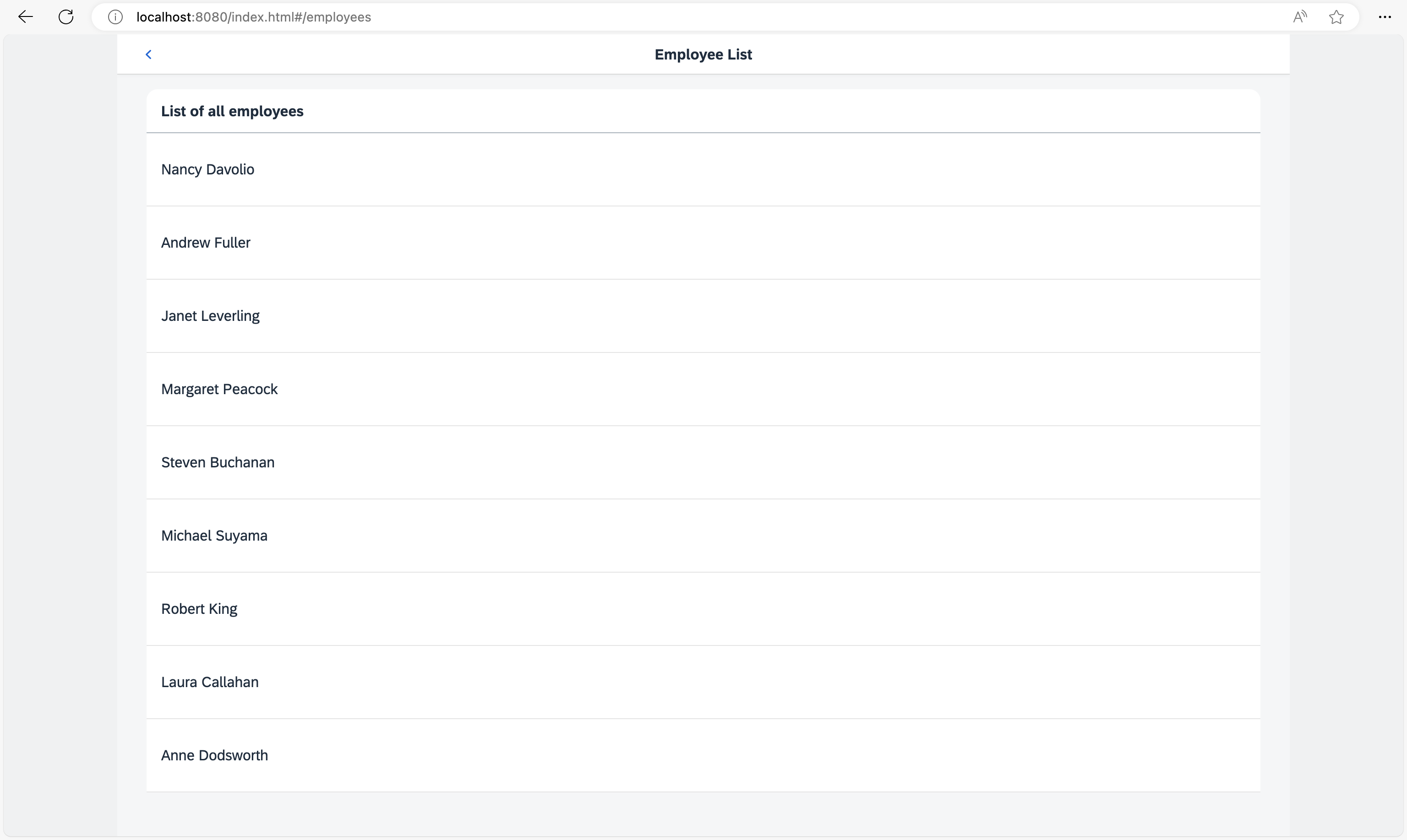
In this step, we’ll create a second button on the home page, with which we can navigate to a simple list of employees. This example illustrates how to navigate to a route that has a hard-coded pattern.
Preview
Show Employee List button on the Home page

Employee list with Back button
You can view this step live: 🔗 Live Preview of Step 6.
Coding
You can download the solution for this step here: 📥 Download step 6 (TS)📥 Download step 6 (JS).
Folder structure for this step
webapp/
├── controller/
│   ├── employee/
│   │   └── EmployeeList.controller.ts/.js
│   ├── App.controller.ts/.js
│   ├── BaseController.ts/.js
│   ├── Home.controller.ts/.js
│   └── NotFound.controller.ts/.js
├── i18n/
│   └── i18n.properties
├── localService/
│   ├── mockdata/
│   │   ├── Employees.json
│   │   └── Resumes.json
│   ├── metadata.xml
│   └── mockserver.ts/.js
├── view/
│   ├── employee/
│   │   └── EmployeeList.view.xml
│   ├── App.view.xml
│   ├── Home.view.xml
│   └── NotFound.view.xml
├── Component.ts/.js
├── index.html
├── initMockServer.ts/.js
└── manifest.json
webapp/view/Home.view.xml
<mvc:View
  controllerName="ui5.tutorial.navigation.controller.Home"
  xmlns="sap.m"
  xmlns:mvc="sap.ui.core.mvc">
  <Page
    title="{i18n>homePageTitle}"
    titleAlignment="Center"
    class="sapUiResponsiveContentPadding">
    <content>
      <Button id="displayNotFoundBtn" text="{i18n>DisplayNotFound}" press=".onDisplayNotFound" class="sapUiTinyMarginEnd"/>
      <Button id="employeeListBtn" text="{i18n>ShowEmployeeList}" press=".onNavToEmployees" class="sapUiTinyMarginEnd"/>
    </content>
  </Page>
</mvc:View>
First, we change the Home view by adding the Show Employee List button. We register an event handler onNavToEmployees for the press event.
webapp/controller/Home.controller.ts/.js
// webapp/controller/Home.controller.ts
import BaseController from "ui5/tutorial/navigation/controller/BaseController";

/**
 * @namespace ui5.tutorial.navigation.controller
 */
export default class Home extends BaseController {

	public onDisplayNotFound(): void {
		// display the "notFound" target without changing the hash
		this.getRouter().getTargets().display("notFound", {
			fromTarget: "home"
		});
	}

	public onNavToEmployees(): void {
		this.getRouter().navTo("employeeList");
	}
}
// webapp/controller/Home.controller.js
sap.ui.define(["ui5/tutorial/navigation/controller/BaseController"], function (BaseController) {
	"use strict";

	const Home = BaseController.extend("ui5.tutorial.navigation.controller.Home", {
		onDisplayNotFound() {
			// display the "notFound" target without changing the hash
			this.getRouter().getTargets().display("notFound", {
				fromTarget: "home"
			});
		},
		onNavToEmployees() {
			this.getRouter().navTo("employeeList");
		}
	});
	return Home;
});
The new event handler onNavToEmployees calls navTo("employeeList") on the router instance. The parameter employeeList is the name of the route that we want to navigate to.
webapp/manifest.json
{
  "_version": "2.8.0",
  "sap.app": {
    ...
  },
  "sap.ui": {
    ...
  },
  "sap.ui5": {
    ...
    "routing": {
      "config": {
        "routerClass": "sap.m.routing.Router",
        "type": "View",
        "viewType": "XML",
        "path": "ui5.tutorial.navigation.view",
        "controlId": "app",
        "controlAggregation": "pages",
        "transition": "slide",
        "bypassed": {
          "target": "notFound"
        }
      },
      "routes": [{
        "pattern": "",
        "name": "appHome",
        "target": "home"
      }, {
        "pattern": "employees",
        "name": "employeeList",
        "target": "employees"
      }],
      "targets": {
        "home": {
          "id": "home",
          "name": "Home",
          "level": 1
        },
        "notFound": {
          "id": "notFound",
          "name": "NotFound",
          "transition": "show"
        },
        "employees": {
          "id": "employeeList",
          "path": "ui5.tutorial.navigation.view.employee",
          "name": "EmployeeList",
          "level": 2
        }

      }
    }
  }
}
To make the navigation work, we have to extend the routing configuration of the app in the descriptor file. We add a new pattern called employeeList; this is the name we used in the controller to trigger the navigation.
The pattern of the route is the hard-coded value employees, meaning the matching hash for this route is /#/employees in the address bar of the browser. The target employees should be displayed when this URL pattern is matched.
The employees entry in the targets section references the ui5.tutorial.navigation.view.employee.EmployeeList view. As you can see, we added a new namespace employee for all views related to employees with the property path. This overrides the default settings in the config section for this specific target.
The view that we are about to create has to be placed in the webapp/view/employee folder accordingly. This approach helps to structure the views of the app according to business objects and to better understand the navigation patterns of the app in larger projects.
📝 We could also have left out the
pathproperty to use the defaultpathdefined in theconfigsection. In that case, we would have to change thenametoemployee.EmployeeListto achieve the same effect.
Setting the level to 2 helps the router to determine how to animate the (in our case) slide transition. For us, this means that a navigation from the home page to the employees target will be animated with a “Slide to Left” animation. In contrast to that, the back navigation from the employees target to the home page will be animated with a “Slide to Right” animation. This behavior is due to the fact that the home page has a lower level than the employees target.
webapp/view/employee/EmployeeList.view.xml (New)
<mvc:View
  controllerName="ui5.tutorial.navigation.controller.employee.EmployeeList"
  xmlns="sap.m"
  xmlns:mvc="sap.ui.core.mvc">
  <Page
    id="employeeListPage"
    title="{i18n>EmployeeList}"
    titleAlignment="Center"
    showNavButton="true"
    navButtonPress=".onNavBack"
    class="sapUiResponsiveContentPadding">
    <content>
      <List id="employeeList" headerText="{i18n>ListOfAllEmployees}" items="{/Employees}">
        <items>
          <StandardListItem
            title="{FirstName} {LastName}"
            iconDensityAware="false"
            iconInset="false"/>
        </items>
      </List>
    </content>
  </Page>
</mvc:View>
We now create a subfolder employee below webapp/view and a file EmployeeList.view.xml.
We name the folder after the business object, to make it obvious from looking at the hash (included in the browser’s address bar) where a view file for a certain business object is located. For example, we can determine from the URL /#/employee that the corresponding view must be somewhere in the folder ./employee (in our case: webapp/view/employee) just by looking at the URL.
In the view, we use a sap.m.List control and bind its items to the data from our simulated OData service. Note that we have also registered the onNavBack handler from the BaseController again to be able to navigate back to the overview.
This view can be referenced by ui5.tutorial.navigation.view.employee.EmployeeList.
webapp/controller/employee/EmployeeList.controller.ts/.js (New)
// webapp/controller/employee/EmployeeList.controller.ts
import BaseController from "ui5/tutorial/navigation/controller/BaseController";

/**
 * @namespace ui5.tutorial.navigation.controller.employee
 */
export default class EmployeeList extends BaseController {

}
// webapp/controller/employee/EmployeeList.controller.js
sap.ui.define(["ui5/tutorial/navigation/controller/BaseController"], function (BaseController) {
	"use strict";

	const EmployeeList = BaseController.extend("ui5.tutorial.navigation.controller.employee.EmployeeList", {});
	return EmployeeList;
});
Finally, we will add a new controller. Create a subfolder employee inside webapp/controller folder and place the file EmployeeList.controller.ts there. As you can see, the folder structure of the controllers is in sync with the folder structure of the views.
webapp/i18n/i18n.properties
...
ShowEmployeeList=Show Employee List
EmployeeList=Employee List
ListOfAllEmployees=List of all employees
Add the new texts to the i18n.properties file.
Now you can open the app and press the Show Employee List button to navigate to the employee list. From there, you can press either the browser’s or the app’s Back button to get back to the home page.
Next: Step 7: Navigate to Routes with Mandatory Parameters
Previous: Step 5: Display a Target Without Changing the Hash