tutorials
Step 2: Create & Enhance a New OpenUI5 Application in JavaScript (40 min)
| ← Previous: Step 1 — Getting Started | Back to Overview | Next: Step 3 — Convert to TypeScript → |
In this step you use Claude Code to scaffold a new OpenUI5 application (JavaScript) and then enhance it: wire it to an OData V4 service, render an entity set in a table, add a detail form, and add translatable texts with formatting logic. Throughout, Claude Code consults the OpenUI5 API reference and the best-practice guidelines — you learn to drive it and to review what it produces.
2.1 Start the mock OData service
The backend is a CAP mock service that you start before scaffolding the app.
First, create a folder named apps at a location of your choice. Throughout this tutorial you’ll keep every app you create or download inside this one folder.
Download cap-mock.zip into your apps folder. Then open a new terminal in the apps folder, unpack the archive, and start the service:
tar -xf cap-mock.zip
cd cap-mock
npm install
npm run watch
The service boots, deploys the seed data to an in-memory database, and serves CatalogService:
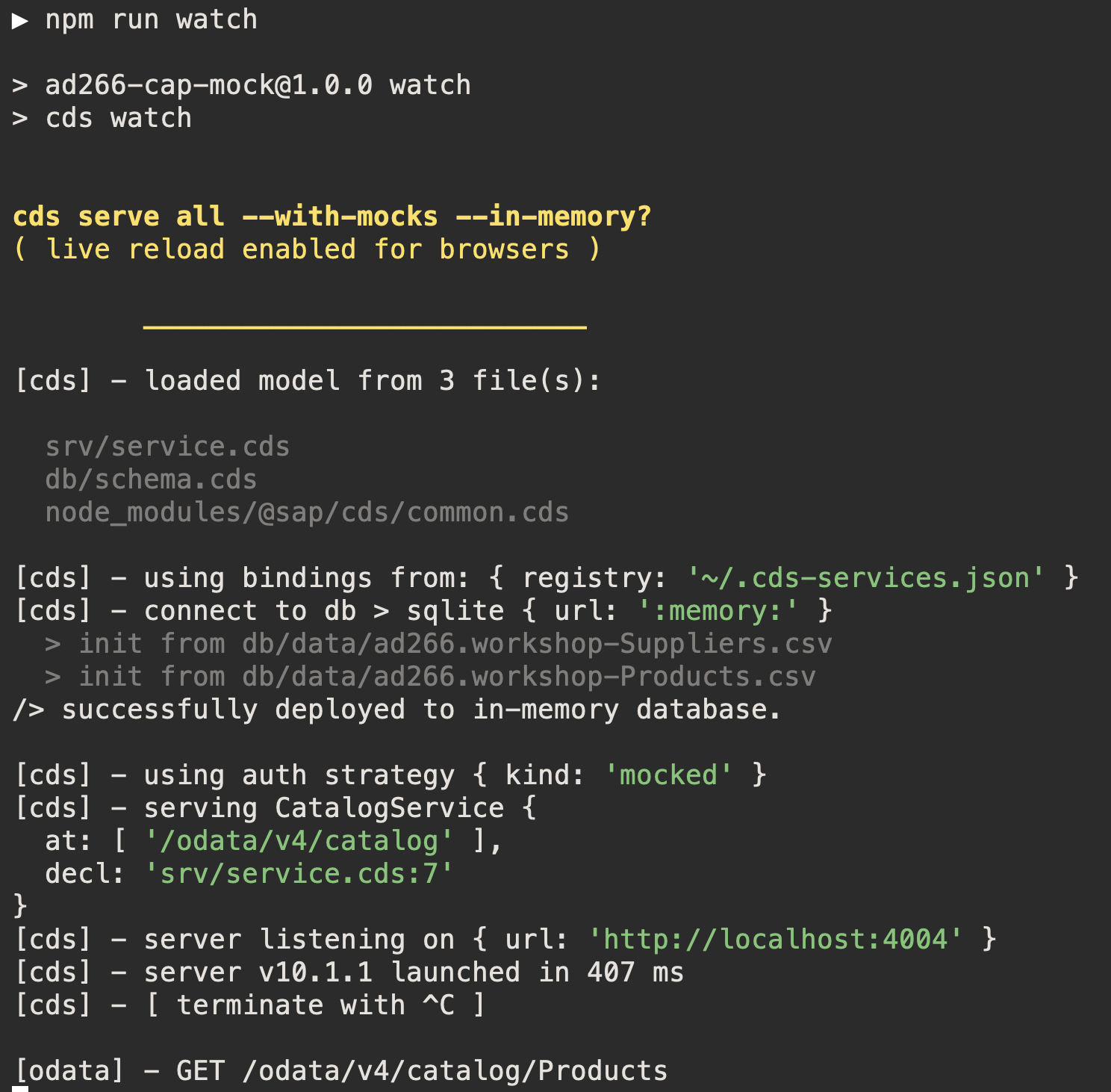
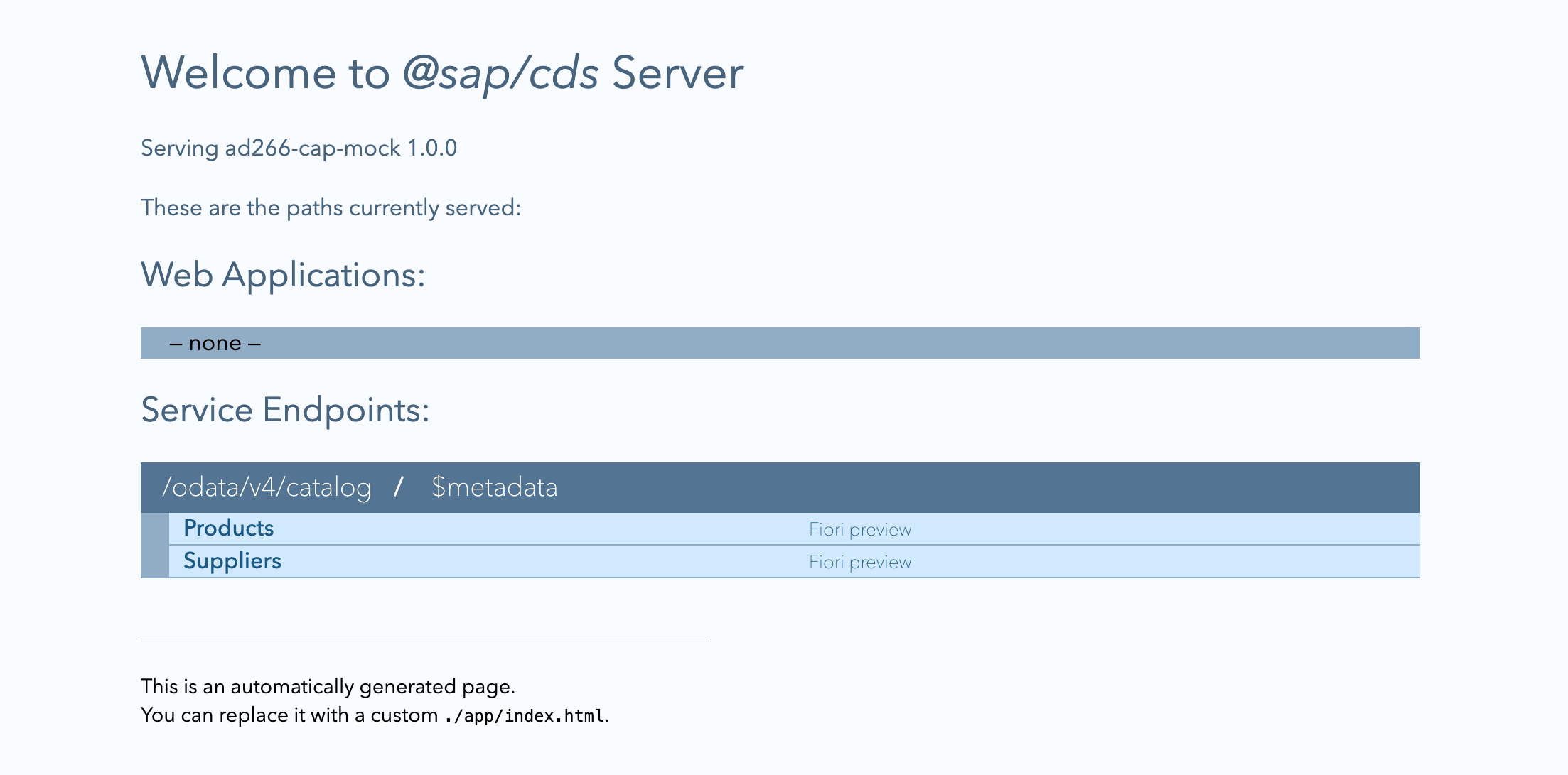
It serves at http://localhost:4004. The CAP welcome page lists the CatalogService with its
Products and Suppliers endpoints:
Confirm the products endpoint returns data — open
http://localhost:4004/odata/v4/catalog/Products (tick Pretty-print in the browser):
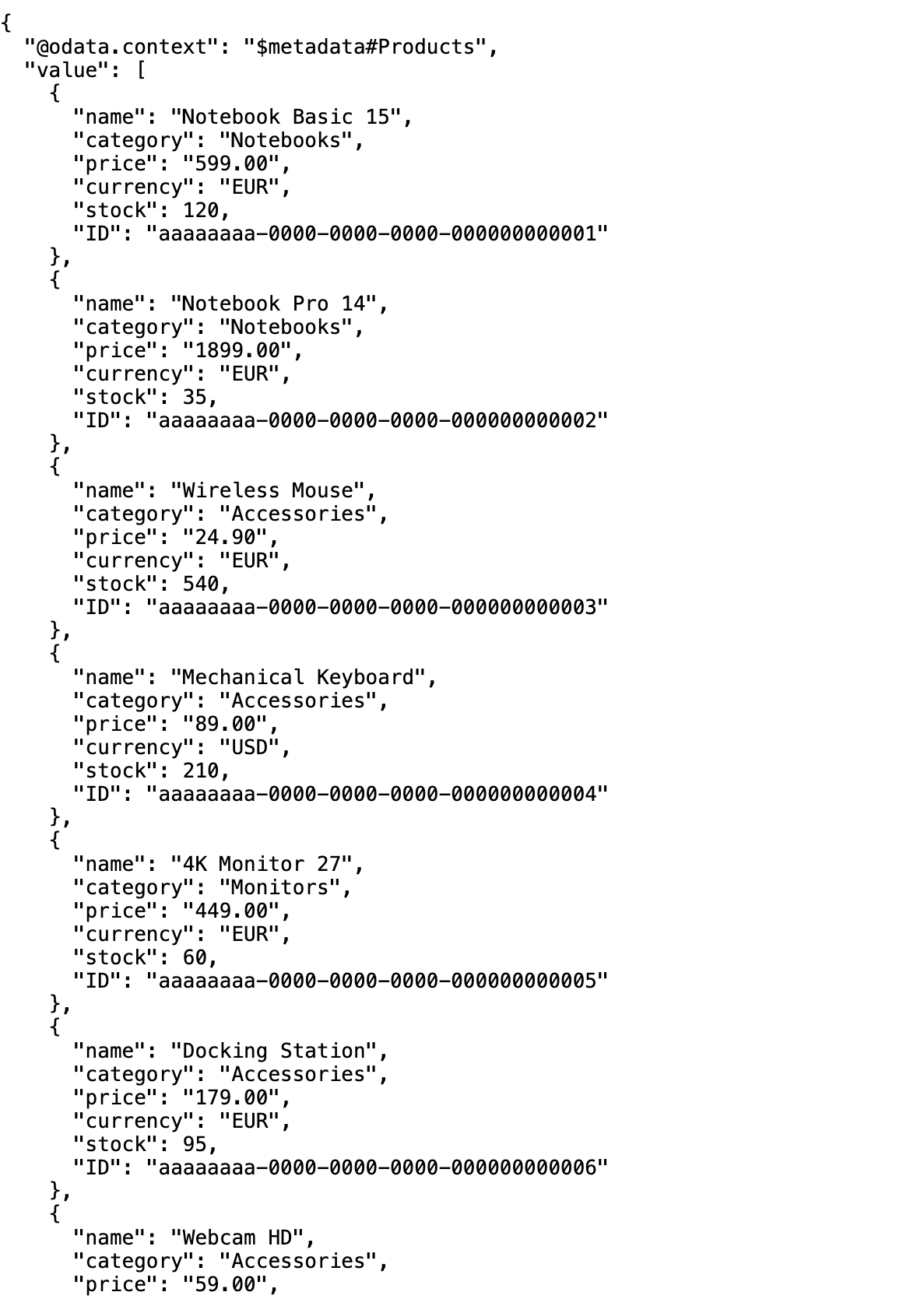
This is the data your OpenUI5 application will bind to in the steps below.
2.2 Scaffold the app
Open a new terminal in your apps/cap-mock folder and start a new Claude Code session there before scaffolding:
claude
📝 This is a new folder, so Claude Code asks you to trust it on launch (see Step 1 → section 1.4); confirm to proceed.
💡 Task: Ask Claude Code to scaffold the application:
Create a new OpenUI5 application in JavaScript with namespace `ui5.tutorial.agentic.products` inside a new `app` folder.
Wire it to the OData V4 service at `http://localhost:4004/odata/v4/catalog/` and the `Products` entity set.
Configure `cds-plugin-ui5` (https://github.com/ui5-community/ui5-ecosystem-showcase/tree/main/packages/cds-plugin-ui5) so the OpenUI5 app is served alongside the CAP service.
Inspect the generated project. Notice the modern defaults the tool applies:
webapp/index.htmlbootstraps viaComponentSupport(no inline script).webapp/manifest.jsondeclares the OData V4 data source and model.webapp/Component.js, a view, and a controller wired withsap.ui.define.
💡 Task: Run the app locally to see the scaffold:
Start the OpenUI5 application.Open the full path (e.g.
http://localhost:4004/ui5.tutorial.agentic.products/index.html) — the dev server does not serve a default index.
2.3 Render the products in a table
💡 Task: Ask Claude Code:
In the main view, show the `Products` entity set in a `sap.m.Table` with columns for name,
category, price (formatted as currency) and stock. Use data binding, and load the best-practice
table guidelines first.
Things to check as it works:
- It calls the
get_api_referencetool of the UI5 MCP server forsap.m.Table/sap.m.Columnand consults the table best-practice rules. - The
pricecolumn uses a built-in OData type (sap.ui.model.odata.type.CurrencyorDecimalwithformatOptions) rather than a hand-rolled formatter. - The binding path targets the
Productsset from the OData V4 model.
2.4 Add a detail form
💡 Task: Ask Claude Code:
When a table row is selected, navigate to a details screen and show the product's details in a form: name,
description, category, price and stock. Follow the OpenUI5 form guidelines.
Review against the guidelines: it must use sap.ui.layout.form.Form with a
sap.ui.layout.form.ColumnLayout (never SimpleForm unless you ask for it), defaulting to
2 columns on M-size.
2.5 Leverage translatable texts and a formatter
💡 Task: Ask Claude Code:
Move the column headers and labels into the i18n resource bundle, and add a formatter that
shows 'Low stock' when stock is below 50. Apply CSP-safe async module loading and keep all locale
files in sync.
Confirm:
- New keys are added to every
i18n*.propertiesfile, not just the default bundle. - The formatter is loaded via
sap.ui.define(JS) and referenced from the view viacore:require— no globals, no inline script.
2.6 Offer support for an additional language
💡 Task: Ask Claude Code:
Add Spanish as a supported language. Translate all existing i18n keys into Spanish, register `es`
as a supported locale in the manifest, and make sure the app still works for users who don't speak Spanish.
OpenUI5’s resource bundle resolves locale files by matching the browser language against the supportedLocales you declare. A Spanish-speaking user gets i18n_es.properties; everyone else falls back to the default i18n.properties. Claude Code should derive the correct file name, locale code, and manifest structure from the OpenUI5 best-practice guidelines.
Confirm:
webapp/i18n/i18n_es.propertiesis present and contains a Spanish translation for every key defined ini18n.properties— not just the keys added in this step.manifest.json→sap.ui5/models/i18n/settingsdeclares:"supportedLocales": ["en", "es", ""]— the empty string""registers the default bundle."fallbackLocale": ""— ensures users with unsupported locales still see the default text.
- Appending
?sap-language=esto the URL loads the Spanish texts in the running app.
Verify
- The app runs locally and shows products from the mock service.
- Selecting a row populates the detail form.
- The UI5 linter is clean on the new code:
Run the UI5 linter on the app and report the findings. (you can see the
run_ui5_lintertool call in its output). manifest.jsonis valid. (you can see therun_manifest_validationtool call in its output).
Summary
You scaffolded and enhanced a real OpenUI5 application by driving a grounded agent, and you verified the result with the UI5 linter. In Step 3 you’ll convert this JavaScript app to TypeScript.
Previous: Step 1: Getting Started
Next: Step 3: Convert a JavaScript OpenUI5 Project to TypeScript