## Step 37: Accessibility
In this step we're going to improve the accessibility of our app.
To achieve this, we will add ARIA attributes. ARIA attributes are used by screen readers to recognize the application structure and to interpret UI elements properly. That way, we can make our app more accessible for users who are limited in their use of computers, for example visually impaired persons. The main goal here is to make our app usable for as many people as we can.
One part of the ARIA attribute set are the so-called landmarks. You can compare landmarks to maps in that they help the user navigate through an app. For this step, we will use Google Chrome with a free [landmark navigation extension](https://chrome.google.com/webstore/detail/landmark-navigation-via-k/ddpokpbjopmeeiiolheejjpkonlkklgp) We will now add meaningful landmarks to our code.
> 💡 **Tip:**
> ARIA is short for **Accessible Rich Internet Applications**. It is a set of attributes that enable us to make apps more accessible by assigning semantic characteristics to certain elements. For more information, see [Accessible Rich Internet Applications \(ARIA\) – Part 1: Introduction](https://blogs.sap.com/2015/06/01/accessible-rich-internet-applications-aria-part-1-introduction/).
***
### Preview
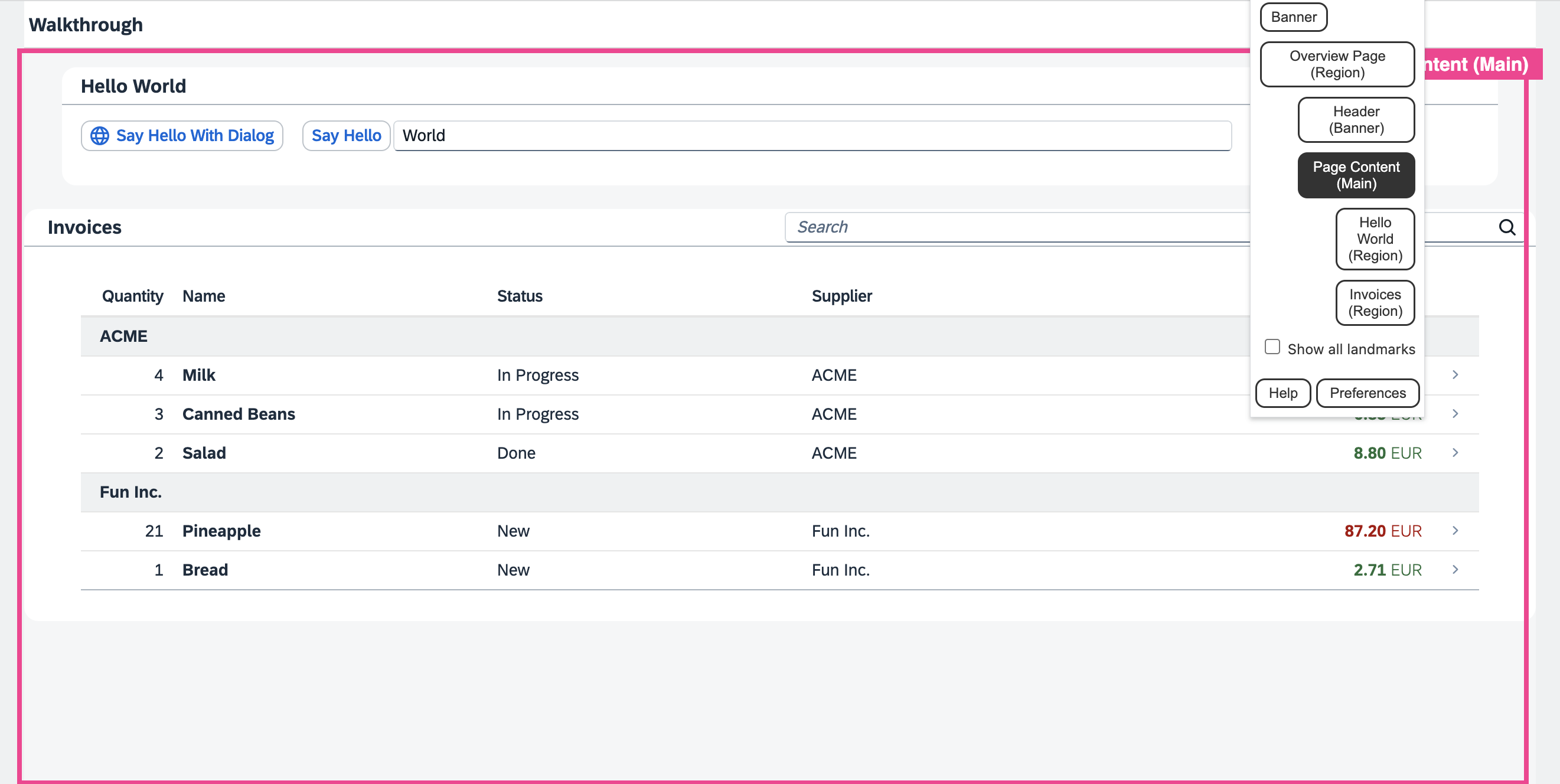
*Landmarks in our app*
You can access the live preview by clicking on this link: [🔗 Live Preview of Step 37](https://ui5.github.io/tutorials/walkthrough/build/37/test/mockServer-cdn.html).
***
### Coding
You can download the solution for this step here: [📥 Download step 37](https://ui5.github.io/tutorials/walkthrough/walkthrough-step-37.zip).
You can download the solution for this step here: [📥 Download step 37](https://ui5.github.io/tutorials/walkthrough/walkthrough-step-37-js.zip).
***
### webapp/i18n/i18n.properties
We add the labels we will need for the ARIA regions to the text bundle.
```ini
# Manifest
appTitle=Hello World
appDescription=A simple walkthrough app that explains the most important concepts of OpenUI5
#Overview Page
Overview_rootLabel=Overview Page
Overview_headerLabel=Header
Overview_contentLabel=Page Content
# Hello Panel
...
```
### webapp/view/Overview.view.xml
We add the `landmarkInfo` aggregation to the page and use `sap.m.PageAccessibleLandmarkInfo` to define ARIA roles and labels for the overview page areas. In the `PageAccessibilityLandmarkInfo` control we specify a role and a title for the root, the content, and the header of the page.
For more information, see the [API Reference: `sap.m.PageAccessibleLandmarkInfo`](https://sdk.openui5.org/api/sap.m.PageAccessibleLandmarkInfo).
```xml
```
### webapp/view/InvoiceList.view.xml
We add an `sap.m.Panel` around the invoice list and move the toolbar from the table into the panel, so that the region can take the title of the toolbar as its own. This has the effect that it will now be a region in our landmarks.
```xml
...
```
### webapp/view/HelloPanel.view.xml
In the `HelloPanel` view, we already have a panel, so we just add the `accessibleRole` attribute.
```xml
…
```
***
### Result
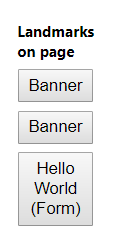
Landmarks on the overview page - before
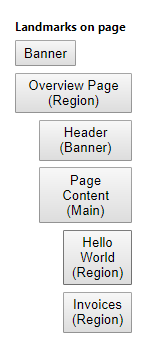
Landmarks on the overview page - after
As you can see, we now have four landmarks on our page. The top three landmarks structure our page:
- *Overview Page* marks the complete page.
- *Header* marks the page title.
- *Page Content* marks the content of our page. This landmark already has two children.
***
**Next:** [Step 38: Build Your Application](../38/README.md "We now configure the visibility and properties of controls based on the device that we run the application on. By making use of the `sap.ui.Device` API and defining a device model we will make the app look great on many devices.")
**Previous:** [Step 36: Content Density](../36/README.md "In this step of our Walkthrough tutorial, we adjust the content density based on the user’s device. OpenUI5 contains different content densities allowing you to display larger controls for touch-enabled devices and a smaller, more compact design for devices that are operated by mouse. In our app, we will detect the device and adjust the density accordingly.")
***
**Related Information**
[Accessibility](https://sdk.openui5.org/topic/03b914b46e624b138a6fb1b7cf2049ae.html "In this guide we cover the most important accessibility aspects for application development, based on OpenUI5.")
[Screen Reader Support for OpenUI5 Controls](https://sdk.openui5.org/topic/656e825c5f1548e6b1d0acb5586f2a2a.html "OpenUI5 offers screen reader support in order to aid people with visual impairments. The implementation is based on the ARIA and HTML standards.")
[API Reference: `sap.m.PageAccessibleLandmarkInfo`](https://sdk.openui5.org/api/sap.m.PageAccessibleLandmarkInfo)