## Step 35: Device Adaptation
We now configure the visibility and properties of controls based on the device that we run the application on. By making use of the `sap.ui.Device` API and defining a device model we will make the app look great on many devices.
***
### Preview
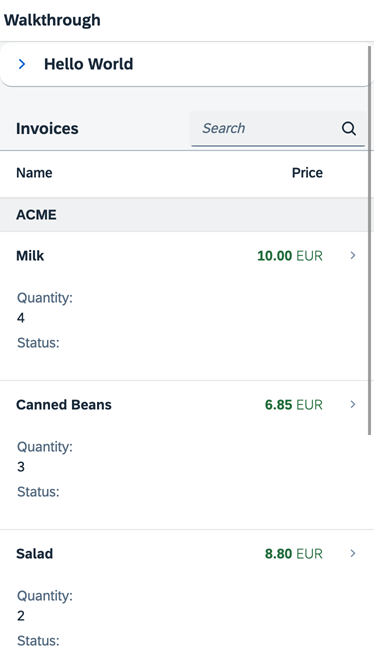
*On phone devices, the panel is collapsed to save screen space and a button is hidden*
You can access the live preview by clicking on this link: [🔗 Live Preview of Step 35](https://ui5.github.io/tutorials/walkthrough/build/35/test/mockServer-cdn.html).
***
### Coding
You can download the solution for this step here: [📥 Download step 35](https://ui5.github.io/tutorials/walkthrough/walkthrough-step-35.zip).
You can download the solution for this step here: [📥 Download step 35](https://ui5.github.io/tutorials/walkthrough/walkthrough-step-35-js.zip).
***
### webapp/Component.?s
In the `app` component we import the `Device` module from the `sap.ui` namespace and initialize the device model in the `init` method. We can simply pass the loaded dependency `Device` to the constructor function of the JSONModel. This will make most properties of the OpenUI5 device API available as a JSON model. The model is then set on the component as a named model so that we can reference it in data binding.
> 📌 **Important:**
> We have to set the binding mode to `OneWay` as the device model is read-only and we want to avoid changing the model accidentally when we bind properties of a control to it. By default, models in OpenUI5 are bidirectional \(`TwoWay`\). When the property changes, the bound model value is updated as well.
```ts
import UIComponent from "sap/ui/core/UIComponent";
import JSONModel from "sap/ui/model/json/JSONModel";
import Device from "sap/ui/Device";
/**
* @namespace ui5.walkthrough
*/
export default class Component extends UIComponent {
public static metadata = {
"interfaces": ["sap.ui.core.IAsyncContentCreation"],
"manifest": "json"
};
init(): void {
// call the init function of the parent
super.init();
// set data model
const data = {
recipient: {
name: "World"
}
};
const model = new JSONModel(data);
this.setModel(model);
// set device model
const deviceModel = new JSONModel(Device);
deviceModel.setDefaultBindingMode("OneWay");
this.setModel(deviceModel, "device");
// create the views based on the url/hash
this.getRouter().initialize();
};
};
```
```js
sap.ui.define(["sap/ui/core/UIComponent", "sap/ui/model/json/JSONModel", "sap/ui/Device"], function (UIComponent, JSONModel, Device) {
"use strict";
const Component = UIComponent.extend("ui5.walkthrough.Component", {
metadata: {
"interfaces": ["sap.ui.core.IAsyncContentCreation"],
"manifest": "json"
},
init() {
// call the init function of the parent
UIComponent.prototype.init.call(this);
// set data model
const data = {
recipient: {
name: "World"
}
};
const model = new JSONModel(data);
this.setModel(model);
// set device model
const deviceModel = new JSONModel(Device);
deviceModel.setDefaultBindingMode("OneWay");
this.setModel(deviceModel, "device");
// create the views based on the url/hash
this.getRouter().initialize();
}
});
;
return Component;
});
```
### webapp/view/HelloPanel.view.xml
We add two new properties `expandable` and `expanded` to the panel control. The user can now close and open the panel to have more space for the table below on devices with small screens. The property `expandable` is bound to our model named `device` and the path `/system/phone`. So the panel can be expanded on phone devices only. The `expanded` property controls the state of the panel and we use expression binding syntax to close it on phone devices and have the panel expanded on all other devices.
We can also hide single controls by device type when we set a CSS class like `sapUiVisibleOnlyOnDesktop` or `sapUiHideOnDesktop`. We only show the button that opens the dialog on desktop devices and hide it for other devices. For more options, see the documentation linked below.
```xml
```
The device API of OpenUI5 offers more functionality to detect various device-specific settings, please have a look at the [documentation](https://sdk.openui5.org/api/sap.ui.Device) for more details.
> 📌 **Important:**
> The `sap.ui.Device` API detects the device type \(Phone, Tablet, Desktop\) based on the user agent and many other properties of the device. Therefore simply reducing the screen size will not change the device type. To test this feature, you will have to enable device emulation in your browser or open it on a real device.
### webapp/controller/Detail.controller.?s
In the `Detail` controller we simply add the view model with our currency definition to display the number properly. It is the same code as in the `InvoiceList` controller file.
```ts
import Controller from "sap/ui/core/mvc/Controller";
import { Route$PatternMatchedEvent } from "sap/ui/core/routing/Route";
import History from "sap/ui/core/routing/History";
import MessageToast from "sap/m/MessageToast";
import ProductRating, { ProductRating$ChangeEvent } from "../control/ProductRating";
import ResourceBundle from "sap/base/i18n/ResourceBundle";
import ResourceModel from "sap/ui/model/resource/ResourceModel";
import JSONModel from "sap/ui/model/json/JSONModel";
import UIComponent from "sap/ui/core/UIComponent";
/**
* @namespace ui5.walkthrough.controller
*/
export default class Detail extends Controller {
onInit(): void {
const viewModel = new JSONModel({
currency: "EUR"
});
this.getView().setModel(viewModel, "view");
const router = UIComponent.getRouterFor(this);
router.getRoute("detail").attachPatternMatched(this.onObjectMatched, this);
}
//...
};
```
```js
sap.ui.define(["sap/ui/core/mvc/Controller", "sap/ui/core/routing/History", "sap/m/MessageToast", "sap/ui/model/json/JSONModel", "sap/ui/core/UIComponent"], function (Controller, History, MessageToast, JSONModel, UIComponent) {
"use strict";
const Detail = Controller.extend("ui5.walkthrough.controller.Detail", {
onInit() {
const viewModel = new JSONModel({
currency: "EUR"
});
this.getView().setModel(viewModel, "view");
const router = UIComponent.getRouterFor(this);
router.getRoute("detail").attachPatternMatched(this.onObjectMatched, this);
},
//...
});
;
return Detail;
});
```
### webapp/i18n/i18n.properties
We will introduce two new fields on our detail page: Shipped date and quantity. We therefore add a text value pair for these two fields to our `i18n` file.
```ini
# Detail Page
detailPageTitle=UI5 TypeScript Walkthrough - Details
ratingConfirmation=You have rated this product with {0} stars
dateTitle=Shipped date
quantityTitle=Quantity
```
### webapp/view/Detail.view.xml
Some controls already have built-in responsive features that can be configured. The `ObjectHeader` control can be put in a more flexible mode by setting the attribute `responsive` to `true` and `fullScreenOptimized` to true as well. This will show the data that we add to the view now at different positions on the screen based on the device size.
We add the `number` and `numberUnit` field from the list of the previous steps also to the `ObjectHeader` and use the same formatter with the `currency` type as in the previous steps. We then define two attributes: The quantity of the invoice and the shipped date which is part of the data model. We have not used this `shippedDate` field from the invoices data model so far, it contains a date in `DateTime` format. As we only want to display the date without any time specification, we add the `Date` type to the BindingInfo.
```xml
```
We can see the results when we decrease the browser's screen size or open the app on a small device.
> 📝 **Note:**
> You can test the device specific features of your app with the developer tools of your browser. For example in Google Chrome, you can emulate a tablet or a phone easily and see the effects. Some responsive options of OpenUI5 are only set initially when loading the app, so you might have to reload your page to see the results.
***
### Conventions
Optimize your application for the different screen sizes of phone, tablet, and desktop devices.
***
**Next:** [Step 36: Content Density](../36/README.md "In this step of our Walkthrough tutorial, we adjust the content density based on the user’s device. OpenUI5 contains different content densities allowing you to display larger controls for touch-enabled devices and a smaller, more compact design for devices that are operated by mouse. In our app, we will detect the device and adjust the density accordingly.")
**Previous:** [Step 34: Routing and Navigation](../34/README.md "We can now navigate between the overview and the detail page, but the actual item that we selected in the overview is not displayed on the detail page yet. A typical use case for our app is to show additional information for the selected item on the detail page.")
***
**Related Information**
[API Reference: `sap.ui.Device`](https://sdk.openui5.org/#/api/sap.ui.Device)