## Step 7: JSON Model
Now that we have set up the view and controller, it’s about time to think about the M in MVC.
We'll create a view model in our controller, add an input field to our app, bind its value to the model, and bind the same value to the description of the input field. The description will be directly updated as the user types.
***
### Preview
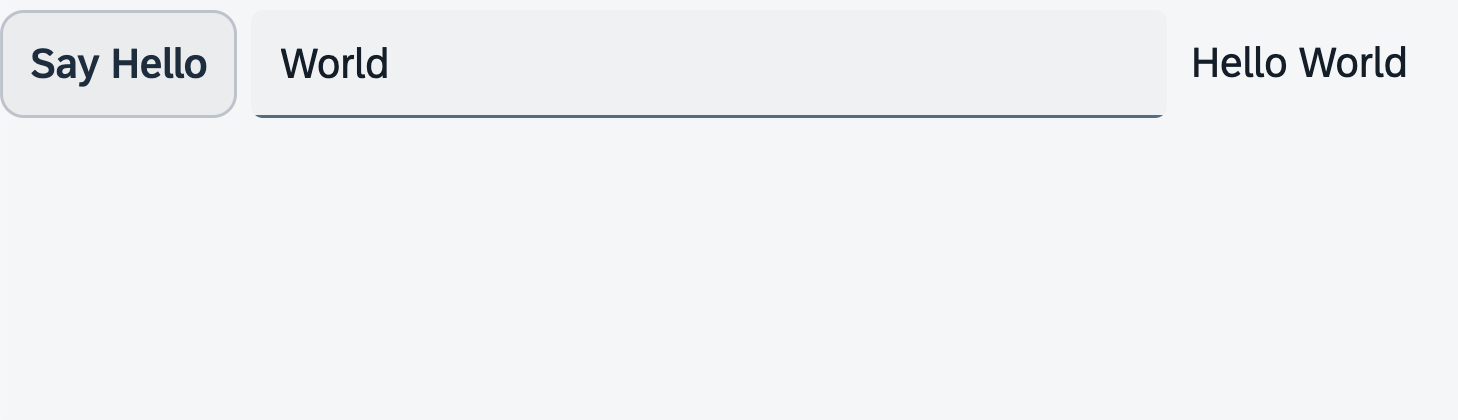
*An input field and a description displaying the value of the input field*
You can access the live preview by clicking on this link: [🔗 Live Preview of Step 7](https://ui5.github.io/tutorials/walkthrough/build/07/index-cdn.html).
***
### Coding
You can download the solution for this step here: [📥 Download step 7](https://ui5.github.io/tutorials/walkthrough/walkthrough-step-07.zip).
You can download the solution for this step here: [📥 Download step 7](https://ui5.github.io/tutorials/walkthrough/walkthrough-step-07-js.zip).
***
### webapp/controller/App.controller.?s
In the controller, we'll create a new data model and link it to the view that is related to the controller. The best time to create a model is during the `onInit` method. This is a special method in the Controller class that is automatically invoked by the framework when the controller is first set up.
To create the data model, we define the `onInit` method in the controller. Inside this method, we construct a data object that contains a property called `recipient`. This `recipient` property has another property within it named `name`, which is assigned the string value "World". We then create a new instance of the `JSONModel` class by providing the data object we just created as an argument.
Next, we need to link this data model to our view. We do this by first obtaining a reference to the view connected to our controller. We can get this reference by using the `getView` function. Then, we use the `setModel` method on the view object to set the data model. We pass the JSON model as a parameter to this method.
```ts
import MessageToast from "sap/m/MessageToast";
import Controller from "sap/ui/core/mvc/Controller";
import JSONModel from "sap/ui/model/json/JSONModel";
/**
* @name ui5.walkthrough.controller.App
*/
export default class AppController extends Controller {
onInit(): void {
// set data model on view
const data = {
recipient: {
name: "World"
}
};
const dataModel = new JSONModel(data);
this.getView()?.setModel(dataModel);
}
onShowHello(): void {
MessageToast.show("Hello World");
}
};
```
```js
sap.ui.define(["sap/m/MessageToast", "sap/ui/core/mvc/Controller", "sap/ui/model/json/JSONModel"], function (MessageToast, Controller, JSONModel) {
"use strict";
const AppController = Controller.extend("ui5.walkthrough.controller.App", {
onInit() {
// set data model on view
const data = {
recipient: {
name: "World"
}
};
const dataModel = new JSONModel(data);
this.getView()?.setModel(dataModel);
},
onShowHello() {
MessageToast.show("Hello World");
}
});
;
return AppController;
});
```
The data in the model is now accessible to the view and all the child controls within that view.
Models in OpenUI5 are used to store and manipulate data that is displayed in the view. By setting a model on the view, the data can be bound to UI controls in the view, allowing for automatic updating of the UI when the data changes.
***
### webapp/view/App.view.xml
We add an `sap/m/Input` control to our view, allowing the user to enter a name for the person they want to greet.
To make this work, we connect, or 'bind', the value of the input control to the `name` attribute of the 'recipient' object in our JSON data model. We do this using a simple binding syntax, which is a straightforward way to link data between the model and the view.
> 📌 **Important:**
> To bind a control property to your view model data you need to specify a [`sap.ui.base.ManagedObject.PropertyBindingInfo`](https://sdk.openui5.org/api/sap.ui.base.ManagedObject.PropertyBindingInfo) for the property. A binding info is always initiated by enclosing it in curly brackets `{…}`, and the properties defined in the BindingInfos API are placed within the brackets.
>
> You can omit all properties of the binding info and just provide the binding path as a simple string. A binding path consists of path segments separated by a slash (`/`) which point to a property in the model that you want to bind to. This applies all OpenUI5 provided models.
>
> Binding paths can be either absolute or relative. Absolute binding paths start with a slash, while relative binding paths start with a name token and are resolved relative to the context of the control that is being bound (we will discuss this further later on).
In addition to this, we create a greeting message. We combine the static text "Hello" with the `name` attribute from our data model, and assign it to the `description` property of the input field. This means that the greeting message will dynamically update with whatever name the user enters. To ensure that the greeting message updates in real time as the user types, we set the `valueLiveUpdate` attribute of the input control to "true".
```xml
```
***
**Next:** [Step 8: Translatable Texts](../08/README.md "In this step we move the texts of our UI to a separate resource file.")
**Previous:** [Step 6: Modules](../06/README.md "In OpenUI5, resources are often referred to as modules. In this step, we replace the alert from the last exercise with a proper Message Toast from the `sap.m` library.")
***
**Related Information**
[Model View Controller \(MVC\)](https://sdk.openui5.org/topic/91f233476f4d1014b6dd926db0e91070.html "The Model View Controller (MVC) concept is used in OpenUI5 to separate the representation of information from the user interaction. This separation facilitates development and the changing of parts independently.")
[JSON Model](https://sdk.openui5.org/topic/96804e3315ff440aa0a50fd290805116.html#loio96804e3315ff440aa0a50fd290805116 "The JSON model can be used to bind controls to JavaScript object data, which is usually serialized in the JSON format.")
[Data Binding](https://sdk.openui5.org/topic/68b9644a253741e8a4b9e4279a35c247.html "You use data binding to bind UI elements to data sources to keep the data in sync and allow data editing on the UI.")
[Property Binding](https://sdk.openui5.org/topic/91f0652b6f4d1014b6dd926db0e91070.html "With property binding, you can initialize properties of a control automatically and update them based on the data of the model.")
[Binding Path](https://ui5.sap.com/#/topic/2888af49635949eca14fa326d04833b9.html "Binding paths address the different properties and lists in a model and define how a node in the hierarchical data tree can be found.")
[API Reference: `sap.ui.base.ManagedObject.PropertyBindingInfo`](https://sdk.openui5.org/api/sap.ui.base.ManagedObject.PropertyBindingInfo "Configuration for the binding of a managed property.")