## Step 5: Controllers

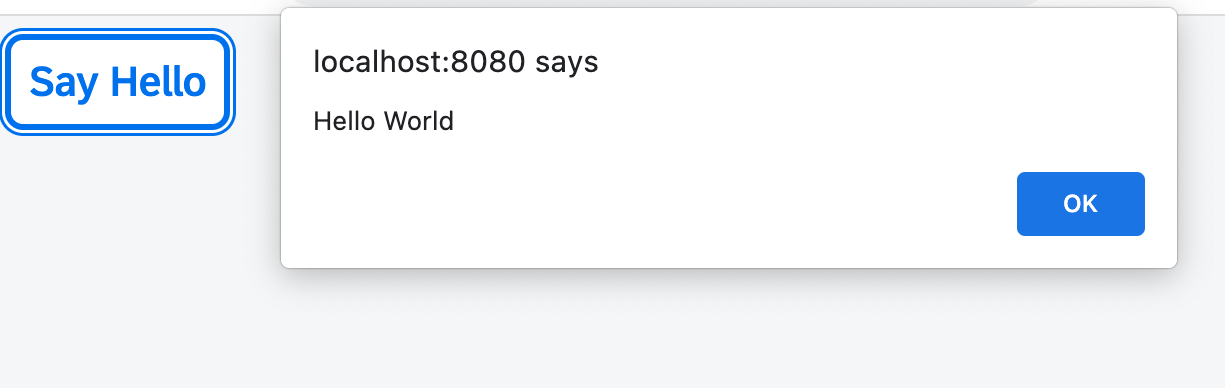
In this step, we replace the text with a button and show the “Hello World” message when the button is pressed. The handling of the button's `press` event is implemented in the controller of the view.

&nbsp;

***

### Preview


![](assets/loiocedfdf89b30643ddbfcab1fe50bfa892_LowRes.png "A Say Hello button is added")

<sup>*A Say Hello button is added*</sup>

You can access the live preview by clicking on this link: [🔗 Live Preview of Step 5](https://ui5.github.io/tutorials/walkthrough/build/05/index-cdn.html).

***

### Coding

<details class="ts-only">

You can download the solution for this step here: [📥 Download step 5](https://ui5.github.io/tutorials/walkthrough/walkthrough-step-05.zip).

</details>

<details class="js-only">

You can download the solution for this step here: [📥 download step 5](https://ui5.github.io/tutorials/walkthrough/walkthrough-step-05-js.zip).

</details>
***

### webapp/controller/App.controller.?s \(New\)
First of all, we need a controller for our app view that defines how the view should react to user inputs, such as a button press event. 

We create a new folder called `controller` inside the `webapp` folder. This folder will hold all our controller files. Inside the `controller` folder, we create a new file called `App.controller.?s`. We define the app controller in its own file by extending the OpenUI5-provided `sap/ui/core/mvc/Controller`. In the beginning, it holds only a single function called `onShowHello` that shows an alert with the static text "Hello World".


```ts
import Controller from "sap/ui/core/mvc/Controller";

/**
 * @name ui5.walkthrough.controller.App
 */
export default class AppController extends Controller {
    onShowHello(): void {
        // show a native JavaScript alert
        alert("Hello World");
     }
};

```

```js
sap.ui.define(["sap/ui/core/mvc/Controller"], function (Controller) {
  "use strict";

  const AppController = Controller.extend("ui5.walkthrough.controller.App", {
    onShowHello() {
      // show a native JavaScript alert
      alert("Hello World");
    }
  });
  ;
  return AppController;
});

```
<details class="ts-only">

> 📝 **Note:** <br>
> The comment `@name ui5.walkthrough.controller.App` is a JSDoc comment that names this controller. It can be used by documentation generators and IDEs to provide more information about this class.

</details>
***

### webapp/view/App.view.xml

To connect our controller with the view, we need to specify the name of our newly created controller in the `controllerName` attribute of the root node. This allows us to access the event handlers and other functionalities defined in the controller. The name should be a module path, which is the location of the controller file. 

In addition, we replace the `<text>` tag with a `<button>` tag. We set the `text` attribute of the button to the static value "Say Hello" and assign the `onShowHello` event from our app controller to the `press` attribute of the button. To indicate that the press event handler is located in the controller of the view and not in the Global Namespace, we prefix the handler name with a dot (`.`) character.

```xml
<mvc:View
   controllerName="ui5.walkthrough.controller.App"
   xmlns="sap.m"
   xmlns:mvc="sap.ui.core.mvc">
   <Button
      text="Say Hello"
      press=".onShowHello"/>
</mvc:View>

```

A view does not necessarily need an explicitly assigned controller. You do not have to create a controller if the view is just displaying information and no additional functionality is required. If a controller is specified, it is instantiated after the view is loaded.

***

### Conventions

-   Controller names are capitalized

-   All controllers are stored in the `controller` folder

-   Controllers carry the same name as the related view \(if there is a 1:1 relationship\)

-   Event handlers are prefixed with `on`

-   Controller names always end with `*.controller.?s`

&nbsp;

***

**Next:** [Step 6: Modules](../06/README.md "In OpenUI5, resources are often referred to as modules. In this step, we replace the alert from the last exercise with a proper Message Toast from the `sap.m` library.")

**Previous:** [Step 4: XML Views](../04/README.md "Putting all our UI into the index.html file will very soon result in a messy setup and there is quite a bit of work ahead of us. So let’s do a first modularization by putting the sap/m/Text control into a dedicated view.")

***

**Related Information**

[Model View Controller \(MVC\)](https://sdk.openui5.org/topic/91f233476f4d1014b6dd926db0e91070.html "The Model View Controller (MVC) concept is used in OpenUI5 to separate the representation of information from the user interaction. This separation facilitates development and the changing of parts independently.")

[Controller](https://sdk.openui5.org/topic/121b8e6337d147af9819129e428f1f75.html "A controller contains methods that define how models and views interact.")

[API Reference: sap.ui.core.mvc.Controller](https://sdk.openui5.org/api/sap.ui.core.mvc.Controller)