tutorials
Step 10: Property Formatting Using Data Types
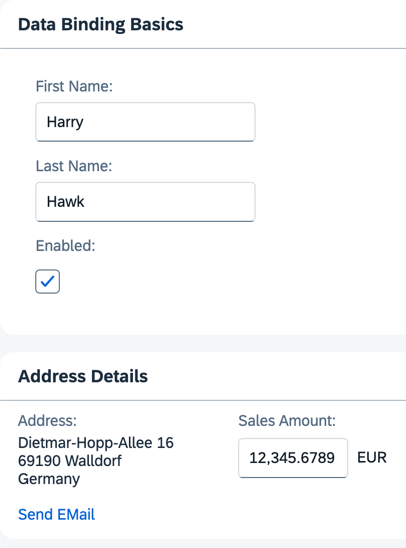
OpenUI5 offers a set of simple data types, including Boolean, Currency, Date and Float. You can apply these data types to controls to ensure that the value displayed on the screen is formatted correctly. If the field is open for input, this also ensures that the user input meets the requirements of that data type. Let’s add a new field called Sales Amount of type Currency.
Preview
An input field for a currency amount is added to the second panel
You can view this step live: 🔗 Live Preview of Step 10.
Coding
You can download the solution for this step here: 📥 Download step 10 (TS)📥 Download step 10 (JS).
Folder structure for this step
webapp/
├── controller/
│   └── App.controller.ts/.js
├── i18n/
│   ├── i18n.properties
│   └── i18n_de.properties
├── model/
│   └── data.json
├── view/
│   └── App.view.xml
├── Component.ts/.js
├── index.html
└── manifest.json
Add two new JSON model properties, salesAmount and currencyCode, to the data.json file.
webapp/model/data.json
{
	"firstName": "Harry",
	"lastName": "Hawk",
	"enabled": true,
	"address": {
		"street": "Dietmar-Hopp-Allee 16",
		"city": "Walldorf",
		"zip": "69190",
		"country": "Germany"
	},
	"salesAmount": 12345.6789,
	"currencyCode": "EUR"
}
Add a sap.ui.layout.HorizontalLayout to the content of the second sap.m.Panel within App.view.xml file. Move the existing sap.ui.layout.VerticalLayout to the default aggregation of the new sap.ui.layout.HorizontalLayout. Finally, add a second sap.ui.layout.VerticalLayout, containing a sap.m.Label and a sap.m.Input control, to the sap.ui.layout.HorizontalLayout.
webapp/view/App.view.xml
<mvc:View
	controllerName="ui5.tutorial.databinding.controller.App"
	xmlns="sap.m"
	xmlns:form="sap.ui.layout.form"
	xmlns:l="sap.ui.layout"
	xmlns:core="sap.ui.core"
	xmlns:mvc="sap.ui.core.mvc"
	core:require="{ColumnLayout:'sap/ui/layout/form/ColumnLayout'}">
	...
	<Panel
		headerText="{i18n>panel2HeaderText}"
		class="sapUiResponsiveMargin"
		width="auto">
		<content>
			<l:HorizontalLayout>
				<l:VerticalLayout>
					...
				</l:VerticalLayout>
				<l:VerticalLayout>
					<Label
						labelFor="salesAmount"
						text="{i18n>salesAmount}"
						showColon="true"/>
					<Input
						description="{/currencyCode}"
						enabled="{/enabled}"
						id="salesAmount"
						value="{
							parts: [
								{path: '/salesAmount'},
								{path: '/currencyCode'}
							],
							type: 'sap.ui.model.type.Currency',
							formatOptions: {showMeasure: false}
						}"
						width="200px"/>
				</l:VerticalLayout>
			</l:HorizontalLayout>
		</content>
	</Panel>
</mvc:View>
We’ve created a new pair of Label and Input elements for the salesAmount model property. The description property of the Input element is bound to the currencyCode model property. The value property of the Input element is bound to the model properties salesAmount and currencyCode. The {showMeasure: false} parameter switches off the display of the currency symbol within the input field itself. This isn’t necessary because the currency symbol is displayed using the Input element’s description property.
Add the highlighted texts to the properties files. Remember, you need to enter special characters (non-Latin-1) using Unicode escape characters.
webapp/i18n/i18n.properties
...
# Field labels
firstName=Vorname
lastName=Nachname
enabled=Enabled
address=Address
salesAmount=Sales Amount
...
webapp/i18n/i18n_de.properties
...
# Field labels
firstName=Vorname
lastName=Nachname
enabled=Aktiviert
address=Adresse
salesAmount=Verk\u00e4ufe bis zum heutigen Datum
...
Next: Step 11: Validation Using sap/ui/core/Messaging
Previous: Step 9: Formatting Values
Related Information