tutorials
Step 9: Formatting Values
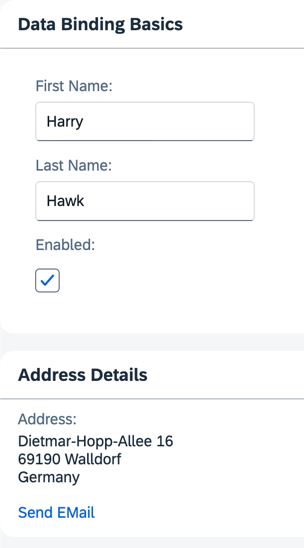
We’d also like to provide our users with a way of contacting Harry Hawk, so we’re adding a link that sends an e-mail to Harry. To do this, we convert our data in the model to match the sap.m.URLHelper.normalizeEmail API. As soon as the user changes the name, the e-mail also changes. We need a custom formatter function for this.
Preview
An e-mail link is added to the address panel
You can view this step live: 🔗 Live Preview of Step 9.
Coding
You can download the solution for this step here: 📥 Download step 9 (TS)📥 Download step 9 (JS).
Folder structure for this step
webapp/
├── controller/
│   └── App.controller.ts/.js
├── i18n/
│   ├── i18n.properties
│   └── i18n_de.properties
├── model/
│   └── data.json
├── view/
│   └── App.view.xml
├── Component.ts/.js
├── index.html
└── manifest.json
Create a new folder named controller within your webapp folder as a general location for all controller files for this app. Next, create a new file named App.controller.ts/.js with the following content:
webapp/controller/App.controller.ts/.js (New)
// webapp/controller/App.controller.ts
import ResourceBundle from "sap/base/i18n/ResourceBundle";
import { URLHelper } from "sap/m/library";
import Controller from "sap/ui/core/mvc/Controller";
import ResourceModel from "sap/ui/model/resource/ResourceModel";

/**
 * @namespace ui5.tutorial.databinding.controller
 */
export default class App extends Controller {
	public async formatMail(firstName: string, lastName: string): Promise<string> {
		const bundle: ResourceBundle = await (this.getView().getModel("i18n") as ResourceModel).getResourceBundle() as ResourceBundle;

		return URLHelper.normalizeEmail(
			`${firstName}.${lastName}@example.com`,
			bundle.getText("mailSubject", [firstName]),
			bundle.getText("mailBody")
		);
	}
}
// webapp/controller/App.controller.js
sap.ui.define(["sap/ui/core/mvc/Controller", "sap/m/library"], function (Controller, mobileLibrary) {
	"use strict";

	return Controller.extend("ui5.tutorial.databinding.controller.App", {
		async formatMail(firstName, lastName) {
			const bundle = await this.getView().getModel("i18n").getResourceBundle();

			return mobileLibrary.URLHelper.normalizeEmail(
				`${firstName}.${lastName}@example.com`,
				bundle.getText("mailSubject", [firstName]),
				bundle.getText("mailBody")
			);
		}
	});
});
In our custom formatter, we set the first and last name currently in the model as function parameters. When a user changes the data in the model by entering a different name in the input fields, our formatter will be invoked automatically by the framework. This ensures that the UI stays in sync with the data model.
In the formatMail function, we use the sap.m.URLHelper.normalizeEmail function that expects an e-mail address, a mail subject, and a text body. When a user follows the link, their default email client will open with these parameters. For more information, see API Reference: sap.m.URLHelper.normalizeEmail. The mailSubject resource bundle text contains a placeholder for the recipient’s first name (see below). Therefore, we provide the name with [firstName].
📝 For a detailed description of the e-mail link format, see MDN - Creating hyperlinks: Email links.
Enhance the App.view.xml file as shown below:
webapp/view/App.view.xml
<mvc:View
	controllerName="ui5.tutorial.databinding.controller.App"
	xmlns="sap.m"
	xmlns:form="sap.ui.layout.form"
	xmlns:l="sap.ui.layout"
	xmlns:core="sap.ui.core"
	xmlns:mvc="sap.ui.core.mvc"
	core:require="{ColumnLayout:'sap/ui/layout/form/ColumnLayout'}">
	...
	<Panel
		headerText="{i18n>panel2HeaderText}"
		class="sapUiResponsiveMargin"
		width="auto">
		<content>
			<l:VerticalLayout>
				...
				<Link
					href="{
						parts: [
							'/firstName',
							'/lastName'
						],
						formatter: '.formatMail'
					}"
					text="{i18n>sendEmail}"/>
			</l:VerticalLayout>
		</content>
	</Panel>
</mvc:View>
For more complex bindings, we can’t use the simple binding syntax with the curly braces anymore. The href property of the Link element now contains an entire object inside the string value. In this case, the object has two properties:
-
partsThis is a JavaScript array in which each element is a string representing a
pathproperty. The number and order of the elements in this array correspond directly to the number and order of parameters expected by theformatMailfunction. -
formatterThis is a reference to the function that receives the parameters listed in the
partsarray. Whatever value the formatter function returns becomes the value set for thehrefproperty. The dotformatMail) at the beginning of the formatter tells OpenUI5 to look for aformatMailfunction on the controller instance of the view. If you don’t use the dot, the function will be resolved by looking into the global namespace.
📝 When using formatter functions, the binding automatically switches to “one-way”. Therefore, you can’t use a formatter function for “two-way” scenarios. However, you can use data types (which we explain in the following steps).
Add the # E-mail section to the i18n.properties and i18n_de.properties files as shown below.
webapp/i18n/i18n.properties
...

# E-mail
sendEmail=Send Mail
mailSubject=Hi {0}!
mailBody=How are you?
webapp/i18n/i18n_de.properties
...

# E-mail
sendEmail=E-mail versenden
mailSubject=Hallo {0}!
mailBody=Wie geht es dir?
Next: Step 10: Property Formatting Using Data Types
Previous: Step 8: Binding Paths: Accessing Properties in Hierarchically Structured Models
Related Information