docs
Step 12: Adding a Search
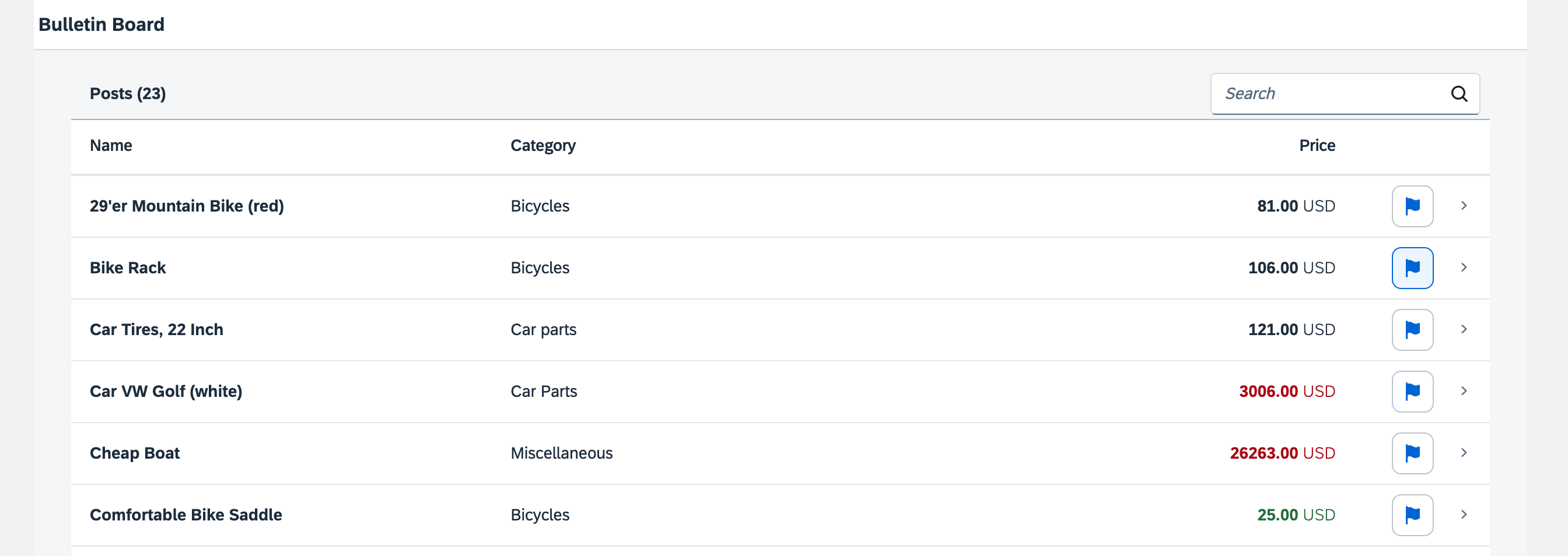
We now add a search field to our bulletin board and define a filter that represents the search term. This is done similarly as in step 24 of the Walkthrough tutorial.
Preview
Search field
Coding
You can view and download all files in the Samples in the Demo Kit at Testing - Step 12.
webapp/view/Worklist.view.xml
...
         <Table
               id="table"
               width="auto"
               class="sapUiResponsiveMargin"
               growing="true"
               items="{
               path: '/Posts',
               sorter: {
                  path: 'Title',
                  descending: false
                  }
               }"
               busyIndicatorDelay="{worklistView>/tableBusyDelay}"
               updateFinished=".onUpdateFinished">
            <headerToolbar>
               <Toolbar>
                  <Label id="tableHeader" text="{worklistView>/worklistTableTitle}"/>
                  <ToolbarSpacer />
                  <SearchField id="searchField" width="auto" search=".onFilterPosts" />
               </Toolbar>
            </headerToolbar>
...
We add a ToolbarSpacer and a SearchField to the headerToolbar of our table.
webapp/controller/Worklist.controller.js
sap.ui.define([
	'./BaseController',
	'sap/ui/model/json/JSONModel',
	'../model/formatter',
	'../model/FlaggedType',
	'sap/m/library',
	"sap/ui/model/Filter",
	"sap/ui/model/FilterOperator"

], function (BaseController, JSONModel, formatter, FlaggedType, mobileLibrary, Filter, FilterOperator) {
	"use strict";
...
		onUpdateFinished: function (oEvent) {
			// update the worklist's object counter after the table update
			var sTitle,
				oTable = oEvent.getSource(),
				iTotalItems = oEvent.getParameter("total");
			// only update the counter if the length is final and
			// the table is not empty
			if (iTotalItems && oTable.getBinding("items").isLengthFinal()) {
				sTitle = this.getResourceBundle().getText("worklistTableTitleCount", [iTotalItems]);
			} else {
				sTitle = this.getResourceBundle().getText("worklistTableTitle");
			}
			this.getModel("worklistView").setProperty("/worklistTableTitle", sTitle);
		},

		onFilterPosts: function (oEvent) {

			// build filter array
			var aFilter = [];
			var sQuery = oEvent.getParameter("query");
			if (sQuery) {
				aFilter.push(new Filter("Title", FilterOperator.Contains, sQuery));
			}

			// filter binding
			var oTable = this.byId("table");
			var oBinding = oTable.getBinding("items");
			oBinding.filter(aFilter);
		},

...
To enable filtering, we extend the controller with a method that applies the search term entered in the search field to the list binding, similarly as we did for InvoiceList.controller.js in step 24 of the Walkthrough tutorial.
Parent topic:Testing Tutorial
Next:Step 11: Testing User Input
Previous:Step 13: Testing User Interaction
Related Information